Connect to a device
How to
- Open left menu
- Click on Connect to device.
- Select your chosen communication method (Bluetooth/MQTT/Wifi-Socket).
- Click on the Search button and select your Tap.
- Click on Connect.

With a mobile
When you launch Tap Manager on a mobile, the 'Run Scanner' page opens:
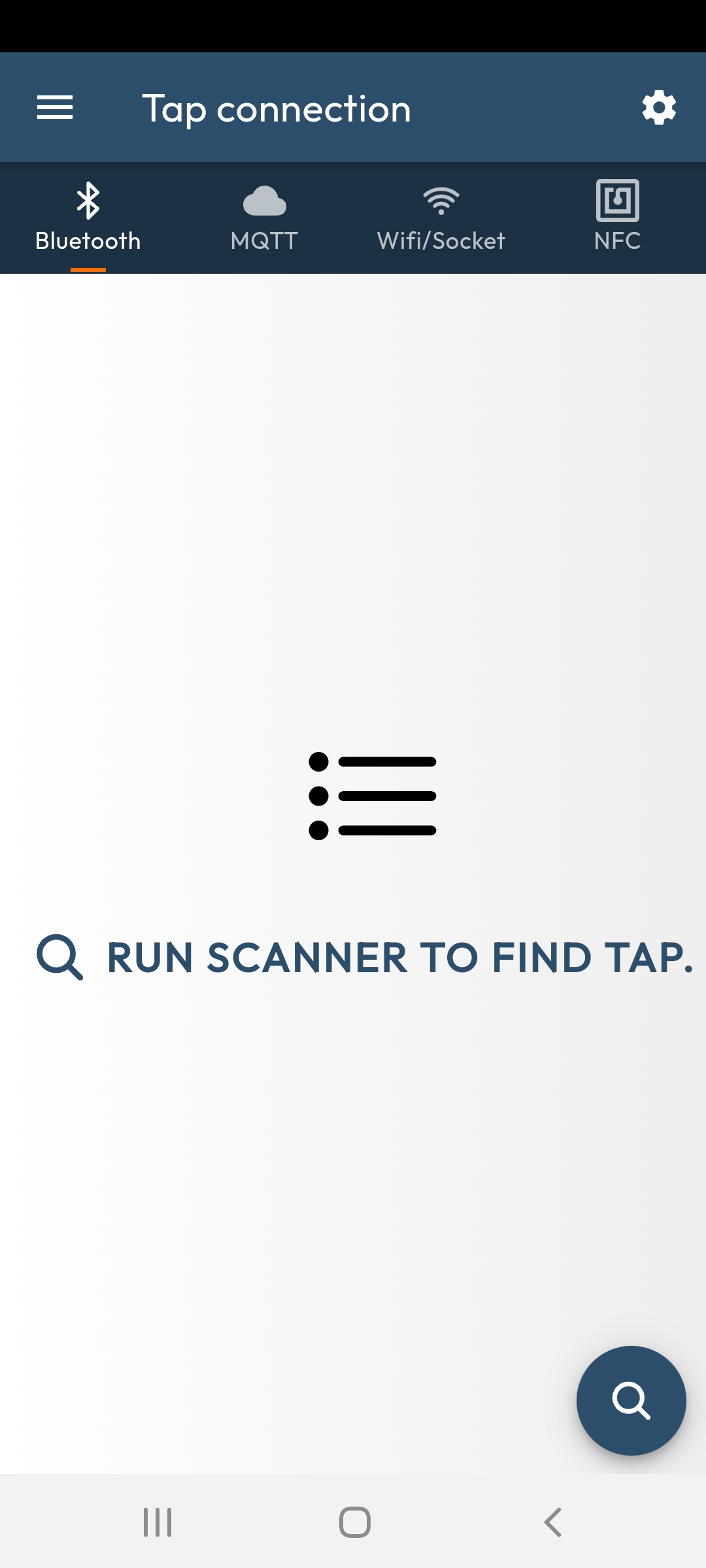
You can then connect via any of the available protocols:
- NFC
- BLE
- WiFi (socket)
- MQTT (over WiFi or LTE-M / NB-IoT)
With the WebApp
From the WebApp version, the list of the available protocols is reduced because most of them are not supported by the browsers. Finally, the choice is limited to:
-
BLE when supported by your browser (and your computer). Typically, you will need a Windows 10 computer, and using Chrome as browser (if you wish to use another browser, check if it supports BLE first).
-
MQTT (but this mode requires a more complex configuration).
Connect via NFC
If you tap your device with your mobile (after enabling NFC):
-
if your TapNLink module features BLE or WiFi, NFC will be used temporarily to switch to one of these protocols (configurable by configuration),
-
if your device only supports NFC (or when BLE/WiFi is not configured), communication will continue using NFC.
Connect via BLE (Bluetooth Low Energy)
When available, BLE is often the most convenient media to communicate locally.
Connect via Wi-Fi (socket)
This is only possible when both your mobile and your TapNLink module are connected to the same network.
In its initial state, WiFi is configured as 'Access Point'. You will therefore need:
- either modify this configuration (using the Sensor application Demo , with login: admin, password: admin) to specify your own network,
- or configure your phone's WiFi to connect to the network provided by the module (the password is ABCD1234).
Connect via MQTT
We do not recommend using MQTT to get started because it requires that:
-
the mobile and the TapNLink module both have internet access,
-
both are configured to communicate with the same MQTT broker.
-
MQTT generally requests certain authentication information from both sides (password, token or certificates).